

Medicare.gov - Tutorial - Your Personalized Medicare Plan Summary
Now we have arrived at the Medicare plan summary page. From this page we can get an overview of the selection of Medicare Advantage plans and Medicare Part D prescription drug plans available in our area - along with Original Medicare.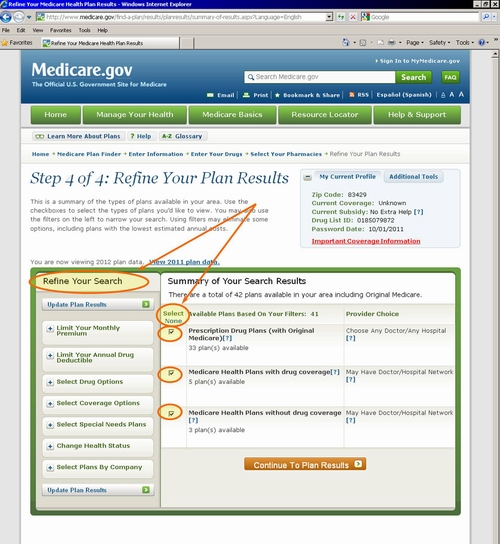

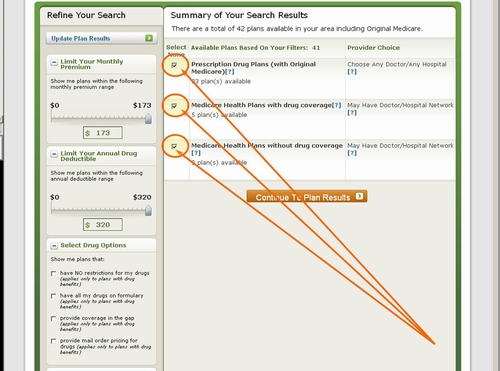

One of the difficult parts about choosing a Medicare plan each year is trying to decide what type of plan you want for the next year. Stand-alone Medicare Part D prescription drug plans (or PDPs) only provide you with prescription drug coverage without any additional health plan coverage (aside what you get from your Original Medicare Part A (In-patient hospital coverage) and Medicare Part B (out-patient doctors office visits)). Medicare Advantage plans without prescription drug coverage provide you only Medicare health benefits and no prescription drug coverage (or MAs). Medicare Advantage plans that also offer prescription drug coverage (or MA-PDs) provide both Medicare health and prescription drug coverage - often at a very low or $0 monthly premium. However, a Medicare Advantage plan can also come in different forms and provide additional service. In short, the analysis of choosing a Medicare Advantage plan is much more complicated than choosing just a Medicare Part D prescription drug plan. To begin this example, we will only examine stand-alone Medicare Part D prescription drug plans that do not include additional Medicare Part A or Medicare Part B coverage.
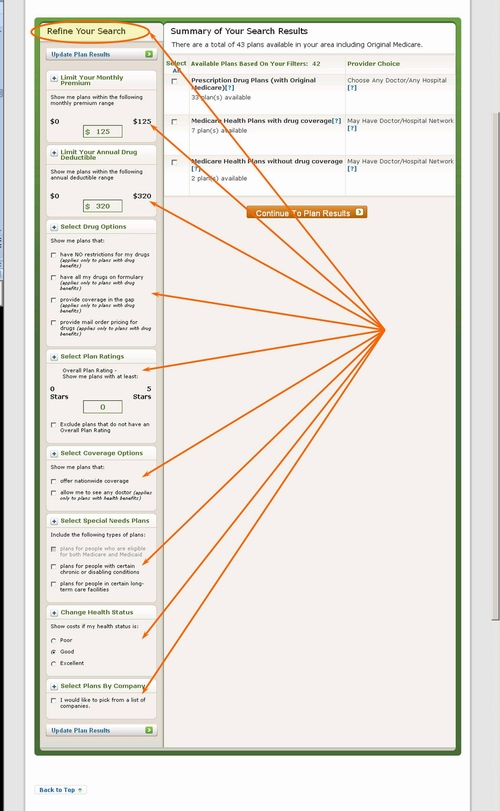

We usually do not change many of the options that are available to us, unless we are looking for a very specific type of Medicare plan. If you do decide to change options, make sure you click on "Update Plan Results" or the changes you made will be lost. Let us take a look at some of the options.
- Select your plan types - as discussed above, this is how you can be sure that you are only seeing the Medicare plans (PDP, MA, MA-PD) that interest you.
- Limit Your Monthly Premium - you might be able to narrow your search later by reducing the monthly premium, but before you know what coverage is offered by the Medicare plans, the monthly premium amount is not something that you can logically limit. If only one plan in the area covers your expensive medications and the plan has a high monthly premium, the extra hundreds of dollars of premium will be a lot less than the extra thousands of dollars you will spend when paying for your own drug out of pocket. Come back to this later if you want to reduce the number of plans available to you. But again, if you have large prescription needs, monthly premiums will be one of your lowest costs - the key is to look at your total costs across the year - and not just one part of the cost.
- Limit Your Annual Deductible - again, why limit your deductible when you may also limit plans with better coverage or better overall cost. Some people just do not like an initial deductible, but you may save money over the year with a Medicare plan that has an initial deductible.
- Change Health Status - one of our favorite Medicare questions. Asking someone about their Health Status really depends on the person or the person's outlook on life. We have spoken with people who are 65 and have the seasonal flu and they say their health is Poor or worse. And we have spoken with people over 90 who consider their health Excellent because they are able to enjoy yet another day of their life. You answer to this "Health Status" question will change the amount of money that Medicare estimates you will spend each year on your personal health care. The question is important for purposes of cost, but this question is also definitely not easily answered either systematically or objectively.
- Select Coverage Option - here you can select Medicare plans that offer nationwide coverage or allow you to see any doctor (Medicare health plans only). Medicare Part D plans have a national network of pharmacies and by their nature really offer nationwide coverage - maybe there is some plan that is an exception, but we have not found it. Again, you may wish to skip this question if you are only looking for a prescription drug plan. If you are interested in a Medicare Advantage plan that offers Medicare health coverage, then you may be concerned with network restrictions associated with a Medicare Advantage plan. For instance, some Medicare Advantage HMOs have a rather restrictive network and you will pay full price for services if you go outside of the HMO network. But, many HMOs have a network that is vast and have a low monthly premium cost.
- Select Special Needs Plans - a Special Needs Plan (or SNP) is a type of Medicare Advantage health plan that has prescription coverage and is focused on a certain group of people with a chronic condition (ex: diabetes) or economic limitation. SNPs are not available everywhere and you must meet the financial or physical requirements to join (and stay in) a SNP. If you are only interested in a stand-alone Medicare Part D plan, then a SNP or other Medicare Advantage plan will not be shown in your search results.
- Select Drug Options - here you can choose to only view Medicare Part D plans that cover your medications or have no usage management restrictions provide gap (Donut Hole) coverage or mail order. Again, you may not see the most affordable Medicare prescription drug coverage if you limit your search too early. If your medication is subject to usage management restrictions (quantity limits, step-therapy, prior authorization), then it is likely that many plans will all have similar restrictions to protect the medication user.
- Select Plans by Company - if you are only interested in working with one company, then you can choose this option and select you insurance company or Medicare plan provider. Remember, you may never know if your chosen plan is the most affordable if you limit your search only by plan.
Ask a Pharmacist*
Have questions about your medication?
» Answers to Your Medication Questions, Free!
Available Monday - Friday
8am to 5pm MST
8am to 5pm MST
*A free service included with your no cost drug discount card.
Q1 Quick Links
- Sign-up for our Medicare Part D Newsletter.
- PDP-Facts: 2024 Medicare Part D plan Facts & Figures
- 2024 PDP-Finder: Medicare Part D (Drug Only) Plan Finder
- PDP-Compare: 2023/2024 Medicare Part D plan changes
- 2024 MA-Finder: Medicare Advantage Plan Finder
- MA plan changes 2023 to 2024
- Drug Finder: 2024 Medicare Part D drug search
- Formulary Browser: View any 2024 Medicare plan's drug list
- 2024 Browse Drugs By Letter
- Guide to 2023/2024 Mailings from CMS, Social Security and Plans
- Out-of-Pocket Cost Calculator
- Q1Medicare FAQs: Most Read and Newest Questions & Answers
- Q1Medicare News: Latest Articles
- 2025 Medicare Part D Reminder Service